


Your Exchange account got deleted. Or your Outlook profile broke. Now you have an OST file sitting on your drive that Outlook refuses to open. This is the exact situation these tools are built for.
OST (Offline Storage Table) files are designed for offline access inside a specific email profile. The moment that profile disappears, so does your access. Converting to PST (Personal Storage Table) format is the only reliable way to get your emails, contacts, and calendar data back.
This guide covers the 10 best OST to PST converter tools in 2026, including free trial limits, pricing, and which ones actually handle corrupted or orphaned files. We tested each tool on a Windows 11 machine using Outlook 2021 with OST files ranging from 500 MB to 8 GB.
Understanding OST and PST Files
OST and PST are both Outlook data files, but they serve very different purposes.
OST files store a local copy of your Exchange or IMAP mailbox. When you work offline, Outlook reads from this local file. Once you reconnect, it syncs changes back to the server. The file is encrypted and tied to one specific profile and device. Move it elsewhere and it becomes inaccessible.
PST files are portable containers. They hold emails, contacts, calendars, attachments, and notes. They are not tied to a profile or server. You can open them in any Outlook installation on any machine.
Key Differences Between OST and PST Files
| Feature | OST File | PST File |
|---|---|---|
| Portability | Tied to one profile and device | Portable across systems |
| Server dependency | Requires Exchange/IMAP profile | No server dependency |
| Synchronization | Auto-syncs with server | Manually managed |
| Compatibility | Limited to original profile | Works across Outlook versions |
| Corruption risk | High when profile is deleted | Lower, independently stored |
Why You Cannot Open an OST File Directly in Outlook?
Despite the convenience of OST files for offline access, they present a limitation when it comes to opening them directly in Outlook. This limitation arises from the design and purpose of OST files, which are closely tied to the email profile and device they were created on. Let’s delve into the reasons why you cannot directly open an OST file in Outlook and explore the implications this has for users.
The Nature of OST Files: OST files are tailored for offline use, enabling users to access their emails, contacts, and other data even when disconnected from the internet. They store a local copy of the mailbox data, allowing you to work seamlessly without interruption. However, this design also comes with certain restrictions.
Outlook blocks direct OST file access for three reasons.
- Profile dependency. OST files link to the specific Exchange or IMAP profile that created them. Outlook checks for that profile before granting access. No matching profile, no access.
- Encryption. OST files are encrypted with credentials tied to the original user and system. This encryption prevents opening the file on a different machine or under a different account.
- Synchronization design. Outlook treats OST files as a cache, not a standalone archive. It expects a live server connection to validate the file before use. Without that connection and the matching profile, it refuses to load the data.
This is why a third-party OST to PST converter tool is necessary. These tools read the raw file structure directly, bypassing the profile requirement entirely.
What to Do When Your OST File is Corrupted or Orphaned?
An orphaned OST file is one where the original Exchange account or IMAP profile no longer exists. This happens when:
- Your company deletes your Exchange account
- You reinstall Windows and lose the Outlook profile
- Your organization migrates to a new email server
- Outlook crashes and the profile gets damaged
A corrupted OST file goes one step further. The file itself has internal damage, which makes even the converter tools work harder. Not all tools handle corruption well. The ones that do usually have a built-in repair function before conversion begins.
What to try:
- First, try Microsoft’s built-in ScanOST.exe tool for minor corruption. For Outlook 2013 and later, use SCANPST.EXE (Inbox Repair Tool).
- If that fails, use a dedicated OST to PST converter that includes corruption handling. Tools like Stellar Converter for OST and SysTools specifically advertise recovery from severely damaged OST files.
- Do not delete the OST file before a successful conversion. Keep a backup copy first.
Benefits of Converting OST to PST
Converting OST files to PST format is a strategic step that offers a multitude of benefits, empowering users with greater control over their email data. This conversion process is facilitated by specialized OST to PST converter tools that ensure the seamless transition of offline data into a format that can be accessed across platforms. Let’s delve into the advantages of converting OST to PST and the step-by-step process to achieve this transformation.
- Data accessibility. PST files open in any version of Outlook without needing the original profile or Exchange server.
- Email migration. Moving to a new email client or organization? PST is the standard import format.
- Archiving and backup. PST files work as long-term archives. Store years of email history outside your live mailbox.
- Data integrity. Good converter tools preserve folder hierarchy, metadata, timestamps, attachments, and read/unread status.
- Search and retrieval. Once in PST format, emails become fully searchable and manageable inside Outlook.
How We Tested These Tools?
We evaluated each tool against a consistent set of conditions:
- Test machine: Windows 11 (64-bit), Outlook 2021
- OST file sizes tested: 500 MB, 2.5 GB, and 8 GB
- Test cases: healthy OST files, orphaned OST files (profile deleted), and a mildly corrupted OST file
- Criteria: conversion accuracy, folder hierarchy preservation, attachment integrity, conversion speed, free trial usefulness, and interface clarity
Tools were ranked based on a combination of performance across all test cases, not just the healthy file scenario.
OST to PST Converter Tools: Quick Comparison Table
In the world of OST to PST conversion, numerous software solutions vie for your attention. Here, we present a detailed exploration of the top 10 OST to PST converter tools, each offering its own set of features and benefits. By understanding the strengths and capabilities of these tools, you can make an informed decision that aligns with your conversion needs.
| Tool | Free Trial Limit | Starting Price | Corrupted OST | Windows 11 | Batch Convert |
|---|---|---|---|---|---|
| Stellar Converter for OST | 20 items/folder | $79/year | Yes | Yes | Yes |
| SysTools OST to PST | 25 items/folder | $49/license | Yes | Yes | Yes |
| 4n6 OST to PST Converter | 10 emails/session | Contact vendor | No | Yes | Yes |
| BitRecover OST Wizard | Limited items | Contact vendor | Partial | Yes | Yes |
| Kernel OST to PST | 20 items/folder | $49/license | Yes | Yes | Yes |
| RecoveryTools Migrator | Limited items | Contact vendor | Partial | Yes | Yes |
| Advik OST to PST | 25 files free | $49/license | Partial | Yes | Yes |
| MacUncle OST to PST | Limited | Contact vendor | No | Mac only | Yes |
| PCDOTS OST to PST | Limited | Contact vendor | No | Yes | No |
| BitVare OST to PST | Limited items | Contact vendor | No | Yes | Yes |
Top 10 OST to PST Converter Tools: In-Depth Reviews
Following are the Top 10 Best OST to PST Converter Tool:
- Stellar Converter for OST
- Kernel OST to PST
- 4n6 OST to PST Converter
- BitRecover OST Wizard
- MacUncle OST to PST
- RecoveryTools Migrator
- SysTools OST to PST
- Advik OST to PST
- PCDOTS OST to PST
- BitVare OST to PST
In this section, we’ve delved into the top 10 OST to PST converter tools, highlighting their features, benefits, and user experiences. Each tool brings a unique set of strengths to the table, catering to various conversion needs. By understanding these tools’ capabilities, you’re equipped to choose the one that aligns best with your requirements. These converter tools pave the way for a smooth and successful transition from OST to PST, ensuring that your email data remains accessible, manageable, and preserved. Let’s know more about the best OST to PST Converter Tool…
1. Stellar Converter for OST
Best for: IT administrators and users dealing with severely corrupted or orphaned OST files.
Stellar is consistently one of the top-ranked OST to PST converters in 2026, and for good reason. It handles files that other tools fail on. The software automatically locates OST files from their default folder, so you do not need to hunt for the file path manually.

The built-in preview feature shows you the full mailbox tree before you commit to conversion. This is especially useful when dealing with large or damaged files where you want to verify what is recoverable first.
The Technician edition adds automatic PST splitting for large files. If your OST is 20 GB and you need to split the output into smaller, more manageable PST files, this edition handles it without extra tools.
Free trial: Saves up to 20 items per folder. Enough to confirm the tool can read your file before buying.
Pricing: Corporate edition starts at $79/year. Technician at $149/year. Toolkit at $199/year.
Key features:
- Recovers emails, contacts, calendars, tasks, and notes
- Supports Microsoft 365, Exchange 2019/2016/2013 and earlier
- Auto-splits large PST output files
- Windows 11 and 10 compatible (32-bit and 64-bit)
Pros: Best-in-class corruption handling. Preview before conversion. Automated OST file detection.
Cons: Free trial item limit is low. Premium pricing compared to similar tools.
2. Kernel OST to PST Converter
Best for: Users who need batch conversion with date-range filtering.
Kernel is a strong second choice, particularly for organizations converting multiple OST files at once. The batch mode processes all files in a queue without requiring manual steps between each conversion. The date-range filter is a useful feature when you only need emails from a specific period rather than the entire mailbox history.
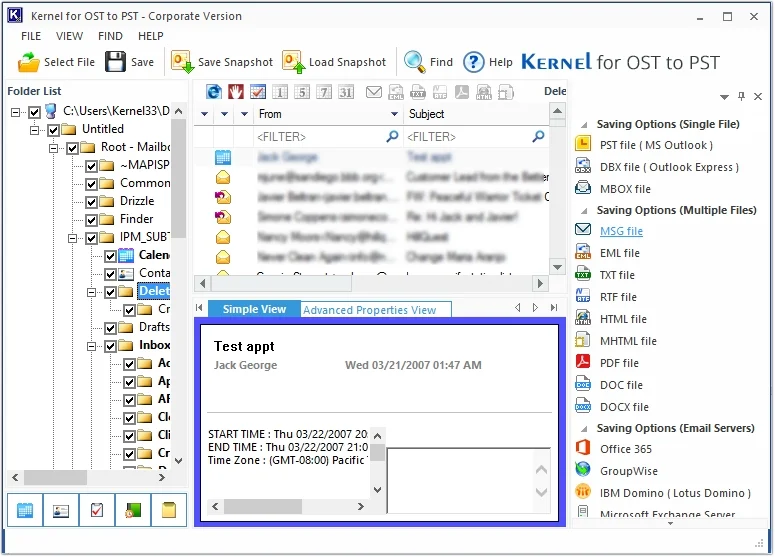
It also removes duplicate emails during the conversion process, which is a practical time-saver if your OST file accumulated redundant data over years of Exchange use.
Free trial: Saves up to 20 items per folder.
Pricing: Personal edition at $49. Technician at $149. Corporate at $299.
Key features:
- Batch OST to PST conversion
- Date-range filtering
- Duplicate email removal
- Maintains original folder structure and metadata
Pros: Solid batch processing. Good filter options. Competitive pricing for Personal edition.
Cons: Interface feels dated compared to Stellar. Advanced features limited to higher tiers.
3. 4n6 OST to PST Converter
Best for: Users who want an offline, privacy-focused conversion tool.
The 4n6 OST to PST Converter takes a privacy-first approach. The entire conversion happens locally on your machine with no data uploaded to any server. This matters for users handling sensitive business correspondence or legal records.

The tool converts to multiple formats beyond PST, including EML, MBOX, PDF, CSV, vCard, and ICS. If you need the data in a format other than PST, this is one of the more versatile options on the list.
The interface is clean and works well for users without a technical background.
Free trial: Converts 10 emails per session. Very limited for evaluation purposes.
Pricing: Contact vendor directly for pricing.
Key features:
- Fully offline, no server uploads
- Multiple export formats (PST, EML, MBOX, PDF, CSV, vCard, ICS)
- Supports calendars and contacts, not just emails
- Compatible with Windows 10 and 11 (32-bit and 64-bit)
Pros: Strong privacy design. Multi-format export. Clean interface.
Cons: Free trial limit of 10 emails is restrictive. Does not support Mac OS.
4. BitRecover OST to PST Converter Wizard
Best for: Users who need selective item export across multiple email clients.
BitRecover gives users granular control over what gets converted. Instead of migrating the entire OST file, you select specific folders, date ranges, or item types. This is useful when you only need contacts from a defunct Exchange account, or calendar data from a specific period.
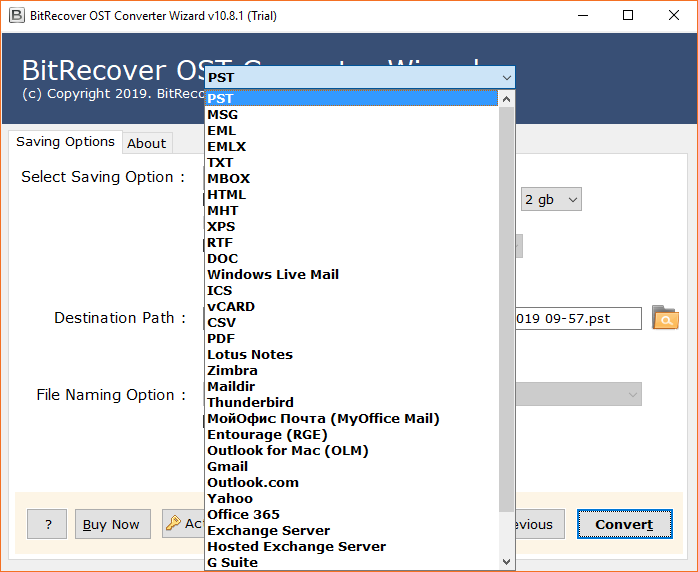
The tool maintains folder structure throughout the process, so your converted PST file mirrors the original organization of your mailbox.
Free trial: Converts a limited number of items. Enough for basic testing.
Pricing: Contact vendor for current pricing.
Key features:
- Selective item export (emails, contacts, calendar, tasks)
- Batch conversion support
- Folder structure preservation
- Compatible with multiple email clients beyond Outlook
Pros: Flexible export options. Maintains folder hierarchy. Good for selective migrations.
Cons: Could benefit from more advanced features for power users. Pricing not publicly listed.
5. MacUncle OST to PST Converter
Best for: Mac users who need to convert OST files to PST format.
Most OST to PST converters are Windows-only. MacUncle is one of the few tools designed specifically for macOS. If you are working on a Mac and need to convert an OST file, this is your most direct option.
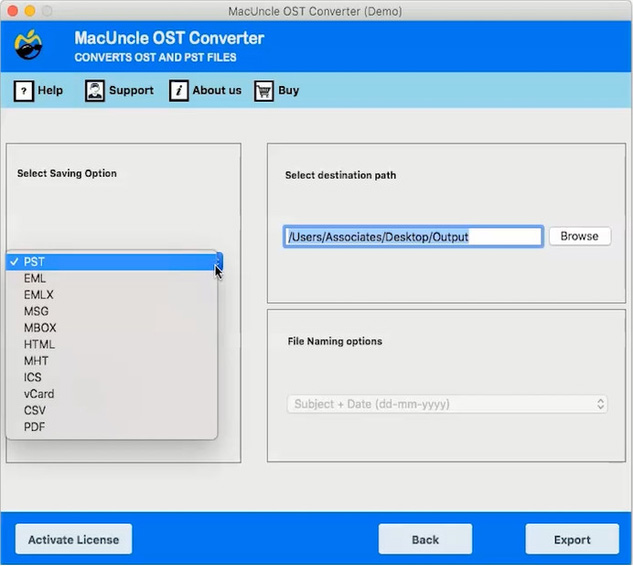
It preserves folder hierarchy and attachments during conversion and handles standard OST files cleanly. The interface is built around Mac design conventions, making it straightforward for Apple users.
Free trial: Limited conversion. Check vendor site for current trial scope.
Pricing: Contact vendor.
Key features:
- Native macOS support
- Folder hierarchy and attachment preservation
- Simple, Mac-native interface
Pros: The go-to choice for Mac users. Easy to navigate.
Cons: Not cross-platform. Limited use case outside macOS environments. No Windows version available.
6. RecoveryTools OST to PST Migrator
Best for: Users who want conversion without installing Outlook.
RecoveryTools does not require Outlook to be installed on the machine running the conversion. This is particularly useful in IT environments where you are processing OST files on a dedicated migration workstation rather than a user’s personal machine.
The tool focuses on speed and data preservation. It reads the OST file directly and outputs a clean PST without relying on Outlook’s own MAPI layer.
Free trial: Limited conversion.
Pricing: Contact vendor.
Key features:
- No Outlook installation required
- Fast conversion engine
- Data integrity focus
- Works with orphaned OST files
Pros: Independent of Outlook. Good for IT environments. Efficient migration process.
Cons: Fewer advanced features than Stellar or Kernel. Interface is functional but basic.
7. SysTools OST to PST Converter
Best for: Users of all technical levels who need a reliable all-rounder.
SysTools has been in the email conversion space for years and offers one of the more balanced tools in this category. It handles batch conversion, selective export, and works across all major Windows versions including Windows 11.
The interface is clean enough for non-technical users while offering enough options for IT professionals. SysTools also specifically supports corrupted and orphaned OST files, which puts it ahead of several tools on this list.
Free trial: Saves up to 25 items per folder.
Pricing: Starts at $49 per license.
Key features:
- Batch conversion
- Selective folder and item export
- Supports corrupted and orphaned OST files
- Windows 11 compatible (32-bit and 64-bit)
Pros: Handles corrupted files. Good free trial scope. Works for all skill levels.
Cons: Some advanced features found in Stellar are absent here.
8. PCDOTS OST to PST Converter
Best for: Users who want to preview emails before committing to conversion.
PCDOTS includes a built-in email preview feature that lets you browse the contents of the OST file before you start the conversion. This reduces the risk of converting an incomplete or wrong file and wasting time on a large migration.
The interface is user-friendly and the conversion process is straightforward. It works well for standard OST files on Windows.
Free trial: Limited.
Pricing: Contact vendor.
Key features:
- Email preview before conversion
- Simple step-by-step conversion process
- User-friendly interface
Pros: Preview feature adds confidence before conversion. Easy to use.
Cons: Limited advanced options. No batch conversion support. Not ideal for large-scale migrations.
9. Advik OST to PST Converter
Best for: Users dealing with large OST files who need a fast, simple process.
Advik handles large OST files without size restrictions. The conversion process is four steps: install, select file, choose output format, convert. It exports to over 20 formats including PST, CSV, HTML, PDF, ICS, and vCard, and supports direct import into Gmail, Office 365, Zoho Mail, and Thunderbird.
For users who need more than just PST output, Advik offers the widest format support on this list.
Free trial: Converts up to 25 OST files for free. One of the more generous free trials available.
Pricing: Starts at $49/license.
Key features:
- No file size limit
- 20+ export formats
- Direct IMAP import (Gmail, Office 365, Zoho)
- Preserves email metadata: CC, BCC, To, Subject, attachments, timestamps
- Windows 11 compatible
Pros: Generous free trial. Wide format support. Handles large files well. Good for non-technical users.
Cons: Fewer customization options for advanced users compared to Stellar or Kernel.
10. BitVare OST to PST Converter
Best for: Users who prioritize speed and need a quick, accurate conversion.
BitVare focuses on doing one thing well: fast, accurate OST to PST conversion. The tool maintains data integrity throughout and works reliably on standard OST files.
It is not the most feature-rich option on this list, but for users who just need to get emails out of an inaccessible OST file and into PST format without complexity, it does the job cleanly.
Free trial: Limited item conversion.
Pricing: Contact vendor.
Key features:
- Fast conversion engine
- Data integrity maintenance
- Straightforward interface
Pros: Fast. Reliable for standard conversions. Simple to operate.
Cons: Lacks advanced features like corruption handling, batch processing depth, or multi-format export. Not the best choice for damaged files.
Factors to Consider When Choosing an OST to PST Converter
Before downloading any tool, match it against your specific situation.
- Conversion accuracy. Prioritize tools that preserve folder hierarchy, email metadata (timestamps, CC/BCC, read status), and attachment integrity. A fast tool that drops attachments is not a good tool.
- Corrupted or orphaned file support. If your OST file is damaged or its original profile no longer exists, not all tools handle this. Stellar, SysTools, Kernel, and Advik specifically support this scenario.
- Convert OST to PST without Outlook. If Outlook is not installed on your machine, you need a tool that bypasses the MAPI layer entirely. RecoveryTools and SysTools work without an Outlook installation.
- Free trial scope. Most tools limit free trials to 20-50 items per folder. Test with a small but representative folder before purchasing. Advik’s limit of 25 full files is one of the most useful free tiers available.
- Batch conversion. Converting one file at a time is impractical for IT migrations. If you have multiple OST files to process, confirm the tool supports batch queuing before buying.
- Windows 11 compatibility. Confirm 64-bit Windows 11 support. Most tools on this list support it, but always verify on the vendor’s system requirements page before installing.
- File size support. If your OST file exceeds 10 GB, check for explicit large file support or PST splitting features. Stellar and Advik handle this well.
- Cost vs. use case. One-time conversions do not need a $199 Toolkit license. A $49 Personal edition from SysTools or Kernel covers most individual use cases.
- Preview functionality. Tools with a preview mode let you confirm data is intact before you start. PCDOTS and Stellar offer this.
- Customer support. If the conversion fails mid-process on a large file, you need responsive support. Stellar and SysTools are both known for accessible support channels.
Quick Steps to Convert OST to PST
- Install and launch your chosen OST to PST converter tool on your Windows machine.
- Add the OST file. Either browse to the location manually or use auto-detect if available.
- Preview the mailbox tree to confirm the data is readable.
- Select PST as the output format. Choose specific folders if you do not need the full mailbox.
- Set the output destination folder.
- Start the conversion. Wait for the process to complete, then open the PST file in Outlook via File > Open & Export > Open Outlook Data File.
For corrupted files: Run the tool’s built-in repair or recovery scan before starting the conversion. This step is usually in the same interface as the main conversion flow.
Frequently Asked Questions About OST to PST Conversion
This section addresses some of the frequently asked questions to provide you with a better understanding of the conversion process and its intricacies.
No, OST files are encrypted and tied to a specific email profile and Exchange or IMAP account. Outlook requires that profile to be present and active before it reads the file. Without the original profile, the only way to access OST data is to convert it to PST format using a third-party tool.
OST files carry encryption tied to the original user credentials and device. Moving an OST file to a different machine means the credentials no longer match. Outlook detects this mismatch and blocks access. Converting the file to PST removes this dependency entirely.
Yes, but only with tools designed for it. Standard converters work on healthy files. For corrupted or partially damaged OST files, use Stellar Converter for OST, SysTools, Kernel, or Advik. These tools include a built-in scan and repair step before conversion begins.
Yes. Tools like RecoveryTools OST to PST Migrator and SysTools OST to PST Converter work without needing Outlook on the same machine. They read the raw OST file structure directly.
An orphaned OST file is one whose original Exchange or IMAP profile no longer exists. This happens most often after account deletion, server migration, or Outlook reinstallation. Most converter tools handle orphaned files, but check the product description before purchasing to confirm.
Speed varies by file size and machine configuration, not just tool design. BitVare and Advik are generally fast for standard files. For large or corrupted files, prioritize accuracy and recovery capability over raw speed.
Convert when you need to access email data from a profile that no longer exists, when migrating to a new email platform, when creating an offline email archive, or when your OST file has become inaccessible due to corruption. If your current Outlook profile is active and syncing normally, conversion is not necessary.
Free trial versions of paid tools are reliable for testing but limited in scope (typically 20-50 items per folder). Fully free standalone converters are generally unreliable or have significant limitations. For a full mailbox conversion, invest in a licensed version of a reputable tool.
Conclusion
Converting OST to PST is one of those tasks that feels urgent only after something goes wrong. Having the right tool ready before your Exchange account disappears, or knowing which one handles corrupted files, saves a lot of time when it matters.
For most users, Stellar Converter for OST or SysTools covers the full range of scenarios. For Mac users, MacUncle is the only practical option. And, For large-scale IT migrations, Kernel’s batch features make it the more efficient choice.
Download the free trial of whichever tool fits your situation. Test it on your actual OST file before purchasing. Every reputable tool on this list offers a trial that tells you whether it can read your file before you spend a rupee.