


Google does not restore emails you deleted yourself. Once they leave your Trash after 30 days, they are gone. No recovery. No support ticket that fixes it.
That is the part most people miss. They assume Google keeps a copy somewhere. It does not, not for individual users, and not for most Google Workspace plans unless your admin set up Vault.
This article covers the 10 best Gmail backup tools available right now, both free and paid. Each tool is labeled by who it suits best. There is a comparison table at the top so you can skip straight to what fits your situation.
Whether you are an individual protecting years of email history, a small business owner, or an IT admin managing a Google Workspace account, you will find a clear answer here.
Quick Answer: What is the Best Gmail Backup Tool?
- Best free option: Google Takeout (basic) or GMvault (advanced)
- Best paid option for individuals: BitRecover Gmail Backup Wizard
- Best for businesses / Google Workspace: SysTools Gmail Backup or Backupify
- Best for Mac users: MacUncle Gmail Backup Tool
- Best for email forensics / analysis: 4n6 Gmail Backup Tool
Also Read: Why is My Gmail Email Full Even After Deleting Everything?
Why You Need Gmail Backup?
Gmail stores 15 GB of data per free account and more under Workspace plans. Over the years, that becomes contracts, receipts, client conversations, and personal records.
Four situations where a backup saves you:
1. Accidental deletion. You delete an email thinking it is junk. Then you need it. Google gives you 30 days in Trash. After that, it is permanent.
2. Account compromise. If someone gains access to your account and deletes emails or changes your password, recovery depends entirely on Google’s review process — which is not instant and is not guaranteed.
3. Leaving Gmail. Switching to Outlook, ProtonMail, or a business email system? You need your old emails in a portable format like PST or MBOX.
4. Legal and compliance requirements. Some industries require email retention for 3-7 years. Google’s standard Gmail does not archive automatically. You need a dedicated tool.
Also Read: Troubleshooting Guide: Gmail Not Working on Computer
What is the Gmail Backup Tool?
A Gmail backup tool creates a copy of your Gmail data, emails, attachments, contacts, labels, and stores it outside your Google account. That copy sits on your local drive, an external hard drive, or another cloud service.
The key difference from regular Gmail use: the backup exists independently of your Google account. If your account gets deleted, locked, or compromised, your data is still with you.
Most tools export in formats like PST (Outlook), MBOX (Thunderbird, Apple Mail), EML, or PDF. The format you choose depends on where you plan to use or store the data.
Tool Comparison Table
| Tool | Price | OS | Export Formats | Scheduled Backup | Free Trial | Best For |
|---|---|---|---|---|---|---|
| Google Takeout | Free | Any (browser) | MBOX, ZIP | No (manual only) | N/A | Quick one-time export |
| GMvault | Free | Windows, Mac, Linux | MBOX | Yes (CLI) | N/A | Free automated backup |
| SysTools Gmail Backup | Paid | Windows, Mac | PST, EML, MSG, MBOX, HTML | Yes | Yes (25 emails) | Business / Workspace |
| BitRecover Gmail Backup Wizard | Paid | Windows | PST, EML, PDF, MBOX, and 20+ more | Yes | Yes | Individuals, format flexibility |
| MacUncle Gmail Backup Tool | Paid | Mac only | MBOX, PST, EML, PDF | No | Yes | Mac users |
| 4n6 Gmail Backup Tool | Paid | Windows | PST, EML, MSG, PDF | No | Yes | Forensics / analysis |
| RecoveryTools Gmail Backup Tool | Paid | Windows | PST, EML, MSG, MBOX, PDF | No | Yes | Beginners |
| Corbett Gmail Backup | Paid | Windows | MBOX, PST, EML, PDF | No | Yes | Basic backup needs |
| PCDOTS Gmail Backup | Paid | Windows | MBOX, EML | No | Yes | Quick, simple backups |
| Advik Gmail Backup | Paid | Windows | PST, EML, MSG, MBOX, PDF | No | Yes | Individuals and businesses |
Top 10 Best Gmail Backup Tools!
Now, let’s explore the key factors to consider when choosing the best Gmail backup tool:
- Ease of Use
- Backup Scope:
- Export Formats
- Security
- Advanced Features
- Cross-Platform Compatibility
- Pricing
- Customer Support
- Reviews and Recommendations
By carefully considering these factors, you can navigate the vast landscape of Gmail backup tools and select the one that best aligns with your specific requirements. Remember, the goal is not just to back up your Gmail data but to do so with confidence, knowing that your digital correspondence and valuable information are in safe hands.
Following are the Best Gmail Backup Tools:
- Google Takeout
- GMvault
- SysTools Gmail Backup
- BitRecover Gmail Backup Wizard
- MacUncle Gmail Backup Tool
- 4n6 Gmail Backup Tool
- RecoveryTools Gmail Backup Tool
- Corbett Gmail Backup
- PCDOTS Gmail Backup
- Advik Gmail Backup
Let’s dive into the top 10 Gmail backup tool…
1. Google Takeout Backup
Best for: Anyone who needs a free, one-time export
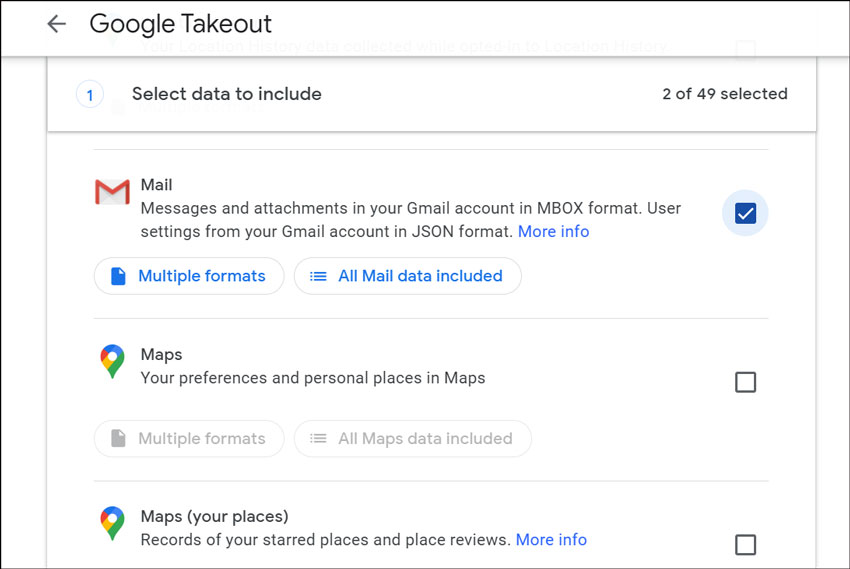
Google Takeout is Google’s own data export service. You go to the site, select Gmail, choose your format (MBOX or ZIP), and download. No software installation needed.
Pros:
Pros:
- Completely free
- Works directly from your browser
- No third-party access to your account
Cons:
- No scheduling — you must do it manually every time
- No filtering by date, folder, or sender
- Large accounts take hours to export
Price: Free
Limitation to know: Google Takeout is a snapshot, not a live backup. If you want automatic, regular backups, you need a different tool.
2. GMvault (Free Advanced Option)
Best for: Technical users who want free automated backup
GMvault is a free, open-source tool that backs up Gmail via IMAP. It runs from the command line and supports incremental backups, meaning it only downloads new emails each time you run it. You can schedule it with Windows Task Scheduler or cron on Mac/Linux.
Pros:
- Free and open-source
- Incremental backup support
- Cross-platform (Windows, Mac, Linux)
- Full Gmail restore functionality
Cons:
- Command-line only — no graphical interface
- Requires some technical comfort to set up
- Less active development updates
Price: Free
Why it is here: Most “best free Gmail backup tool” articles skip GMvault entirely. It fills the gap between Google Takeout (basic, manual) and paid tools. If you are comfortable with CLI tools, GMvault gives you proper scheduled backups at zero cost.
3. SysTools Gmail Backup
Best for: Businesses and Google Workspace admins
The SysTools Gmail Backup Tool is built for professional use. It handles multiple Gmail accounts, supports incremental backups, and exports to a wide range of formats. For Workspace admins backing up team email, it is one of the more complete options available.

Key Features:
- Incremental backup (only backs up new or changed emails since the last run)
- Multiple export formats: PST, EML, MSG, MBOX, HTML
- Date-range and folder filtering
- Encrypted backup files
- Available for both Windows and Mac
Pros:
- One of the few tools with true incremental backup
- Strong filtering for large accounts
- Available on Mac and Windows
- Handles Google Workspace accounts
Cons:
- Paid tool; trial is limited to 25 emails per folder
- Advanced features take time to learn
Price: Paid with free trial
4. BitRecover Gmail Backup Wizard
Best for: Individuals who need multiple export formats
BitRecover supports over 25 export formats, more than any other tool on this list. If you need to export Gmail to PDF for archiving, or PST for Outlook, or even HTML for viewing in a browser, BitRecover covers it. The interface is straightforward, and setup takes a few minutes.

Key Features:
- 25+ export formats including PST, EML, PDF, MBOX, MSG, HTML, MHT
- Selective folder and email backup
- Date range, sender, subject filtering
- Password-protected backup files
Pros:
- Widest format support of any tool on this list
- Granular filtering options
- Good user interface for non-technical users
Cons:
- Windows only
- Paid; no free backup beyond the trial limit
Price: Paid with free trial
5. MacUncle Gmail Backup Tool
Best for: Mac users who want a native experience
MacUncle is designed specifically for macOS. It follows Mac UI conventions, integrates cleanly with the operating system, and handles Gmail backup without requiring Windows-based workarounds.
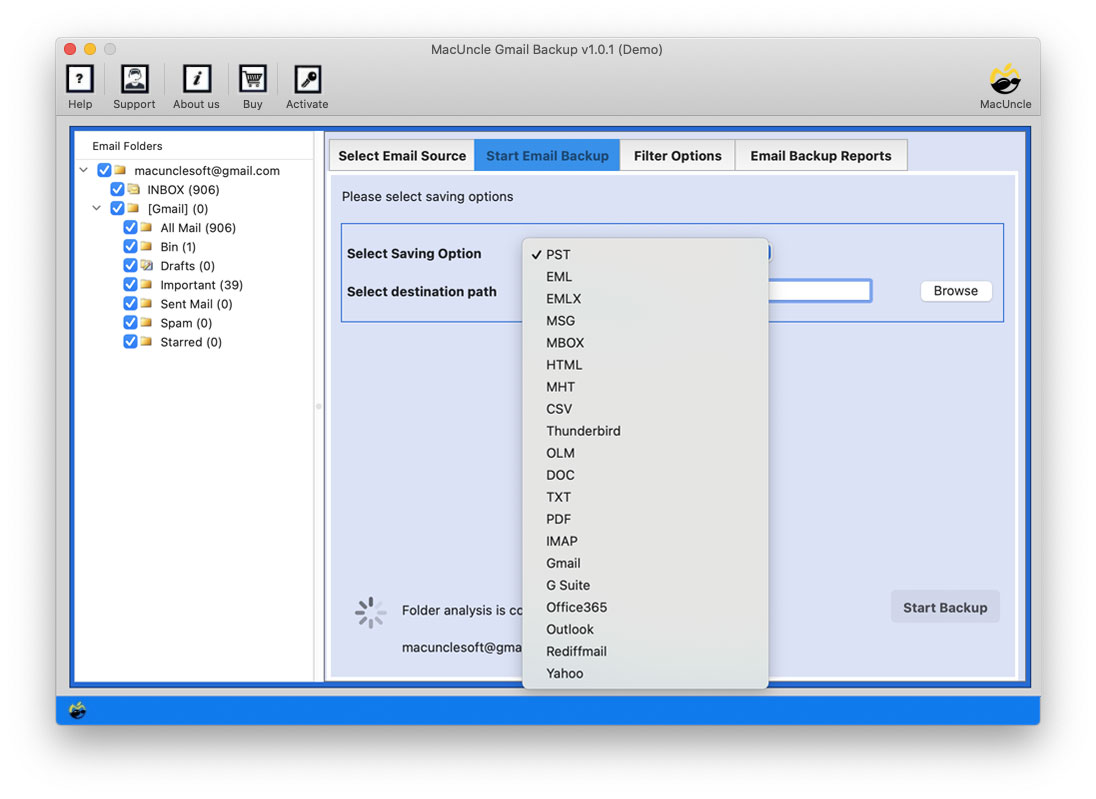
Key Features:
- Built for macOS
- Export to MBOX, PST, EML, PDF
- Selective folder backup
- Simple setup process
Pros:
- Native Mac experience
- Good choice for users who found other tools Windows-centric
- Supports multiple formats
Cons:
- No scheduling / automatic backup
- Fewer advanced features than SysTools or BitRecover
Price: Paid with free trial
6. 4n6 Gmail Backup Tool
Best for: Email forensics, legal, and in-depth analysis
4n6 goes beyond backup. It offers email header analysis, sender-receiver mapping, and metadata extraction features you will not find in basic backup tools. This is useful for legal discovery, compliance audits, or anyone who needs more than just a copy of their emails.

Key Features:
- Advanced email header and metadata analysis
- Export to PST, EML, MSG, PDF
- Selective backup with advanced filters
- Date range, keyword, and folder filtering
Pros:
- Strong analysis features beyond standard backup
- Useful for legal and compliance use cases
- Multiple export formats
Cons:
- More features than most personal users need
- Steeper learning curve for beginners
Price: Paid with free trial
7. RecoveryTools Gmail Backup Tool
Best for: Beginners who want a simple interface
RecoveryTools focuses on ease of use. The setup is quick, the interface is clean, and you do not need to understand email formats or server settings to get a backup done. A good starting point for non-technical users.

Key Features:
- Supports PST, EML, MSG, MBOX, PDF
- Selective folder backup
- Date range filtering
- Beginner-friendly interface
Pros:
- Lowest learning curve on the list
- Covers the main export formats
- Good for one-off backups
Cons:
- No incremental or scheduled backup
- Not suited for large-scale or business use
Price: Paid with free trial
8. Corbett Gmail Backup
Best for: Users who need reliable basic backup without extra features
Corbett covers the essentials: email and attachment backup, multiple export formats, and a clean interface. It does not try to do too much, which makes it predictable and easy to use.
Key Features:
- Export to MBOX, PST, EML, PDF
- Selective folder backup
- User-friendly interface
Pros:
- Simple and reliable
- No unnecessary complexity
Cons:
- No incremental backup
- Fewer advanced features than SysTools or BitRecover
Price: Paid with free trial
9. PCDOTS Gmail Backup
Best for: Users who want the fastest possible basic backup
PCDOTS keeps things minimal. It supports MBOX and EML exports, the interface is straightforward, and it is designed for speed over feature depth. If you need a quick backup with no configuration overhead, this works.
Key Features:
- MBOX and EML export
- Quick backup process
- Simple interface
Pros:
- Fast setup and execution
- Good for users who just need a copy of their inbox
Cons:
- Limited export format options
- No incremental or scheduled backup
Price: Paid with free trial
10. Advik Gmail Backup
Best for: Individuals and small teams who need a well-rounded paid tool
Advik sits in the middle of the market: more features than the basic tools, more accessible than SysTools. It covers the main export formats, supports selective backup, and works for both personal and business Gmail accounts.
Key Features:
- Export to PST, EML, MSG, MBOX, PDF
- Selective folder and email backup
- User-friendly interface
- Supports personal and business Gmail
Pros:
- Good balance of features and ease of use
- Works for individuals and small teams
Cons:
- Paid only; no notable free tier
- No scheduling or incremental backup
Price: Paid with free trial
Keep in mind that while some of these tools are free or offer trial versions, they often have limitations on the features or amount of data you can back up. Paid tools generally provide more comprehensive features and support for larger backups. It’s essential to consider your specific needs and budget when choosing the right Gmail backup tool for you.
Also Read: How to Permanently Mass Delete Gmail Emails?
How Can I Backup My Entire Gmail?
The simplest way is Google Takeout. Here are the steps:
- Go to takeout.google.com
- Click “Deselect All,” then scroll down and select “Mail”
- Click “All Mail data included” to choose specific labels or keep everything
- Choose your delivery method — “Send download link via email” is the standard option
- Click “Create Export” and wait for Google to prepare the file
- Download the MBOX or ZIP file once the link arrives in your email
For ongoing, automated backups, use GMvault (free) or a paid tool like SysTools or BitRecover that supports scheduled backups.
Also Read: Best Gmail Attachmnet Extractor Tool
Can I Backup Gmail Emails to a Hard Drive?
Yes. Any tool on this list lets you export Gmail to your local hard drive. After downloading, store the file on an external drive for an offline copy.
For bulk downloads, read: How to Download Gmail Emails in Bulk to Hard Drive
FAQ
No. Google maintains infrastructure-level redundancy to prevent data center failures, but it does not create personal backups for individual users. If you delete an email, Google will not recover it for you after the Trash window closes.
Google Takeout is the easiest free option for a one-time export. GMvault is better if you want free automated or incremental backups and are comfortable with command-line tools.
Use PST if you plan to open emails in Outlook. Use MBOX if you use Thunderbird or Apple Mail. Use PDF if you want a read-only archive you can open on any device without an email client.
For most personal users doing a one-time export, yes. For ongoing protection, no — Takeout is manual, there is no scheduling, and it does not support filtering. A tool like SysTools or BitRecover with scheduled backup is more reliable for regular use.
Yes. SysTools Gmail Backup supports Workspace accounts. Google also offers Google Vault for Workspace customers, which is an enterprise-grade archiving and eDiscovery solution separate from the tools listed here.
The MBOX file contains all your selected emails in a single file. You can open it in email clients like Thunderbird, Apple Mail, or Postbox. It is a widely supported format for long-term email storage.
Choosing the Right Gmail Backup Tool
Start with what you actually need:
- Free, one-time export: Google Takeout
- Free, automated backup: GMvault
- Best overall paid tool for individuals: BitRecover (format flexibility) or Advik (ease of use)
- Best for Mac: MacUncle
- Best for businesses or Workspace: SysTools
- Best for legal/compliance needs: 4n6
Pick a tool that matches your operating system, your backup frequency needs, and your export format requirements. Then make a backup today, not after something goes wrong.
Conclusion
Gmail backup is an essential practice in the digital era. Losing access to your email data can be catastrophic. We’ve explored the top 10 Best Gmail backup tool, each with its unique features and benefits. Remember to choose a tool that aligns with your requirements and backup Gmail to a hard drive for added security. Safeguard your digital world with reliable Gmail backup tools, ensuring your emails and important data are always within reach.
Also Read: Best Email Backup Software