How to Fix High CPU Usage in Windows?

 6th March, 2026
 21 min read
 You open your laptop for something simple. Maybe just a browser tab, maybe a quick edit. And then it starts. The fan spins louder. Apps take forever to respond. The cursor freezes for a second longer than it should.
It feels like your system is struggling… for no clear reason.
Here’s the thing. This isn’t rare. And more importantly, it’s not permanent.
Most people assume something is “wrong” with their computer. Some even jump to the conclusion that they need a new one. But in many cases, the real issue is just that your system is overloaded or mismanaging tasks in the background.
Think of your CPU like a manager handling multiple employees. When too many tasks come in at once or something keeps demanding attention nonstop, things slow down. Not because the manager is broken, but because it’s overwhelmed.
What this really means is you don’t need to panic. You just need to understand what’s taking up that power and how to bring things back under control.
And that’s exactly what we’re going to do next.
What’s Really Happening Inside Your PC?
Let’s simplify this.
Your CPU is basically the brain of your computer. Every click, every app, every background task goes through it. It decides what runs, when it runs, and how much attention each task gets.
Now imagine this.
You’re managing a small office. A few people come to you with tasks, no problem. You handle them smoothly. But suddenly, ten people show up at once. One keeps interrupting. Another refuses to leave. A few are quietly waiting but still need attention.
That’s what high CPU usage looks like.
When your system shows 80 to 100 percent usage, it means your CPU is fully occupied. It’s not broken. It’s just busy. The problem starts when it stays busy all the time, even when you’re not doing anything heavy.
So what’s actually going on behind the scenes?
- Some apps are actively using power
Games, browsers, editing tools, these are expected - Some processes run quietly in the background
Updates, syncing, indexing, system services - Sometimes, something goes rogue
A bug, a stuck process, or even malware can keep demanding CPU nonstop
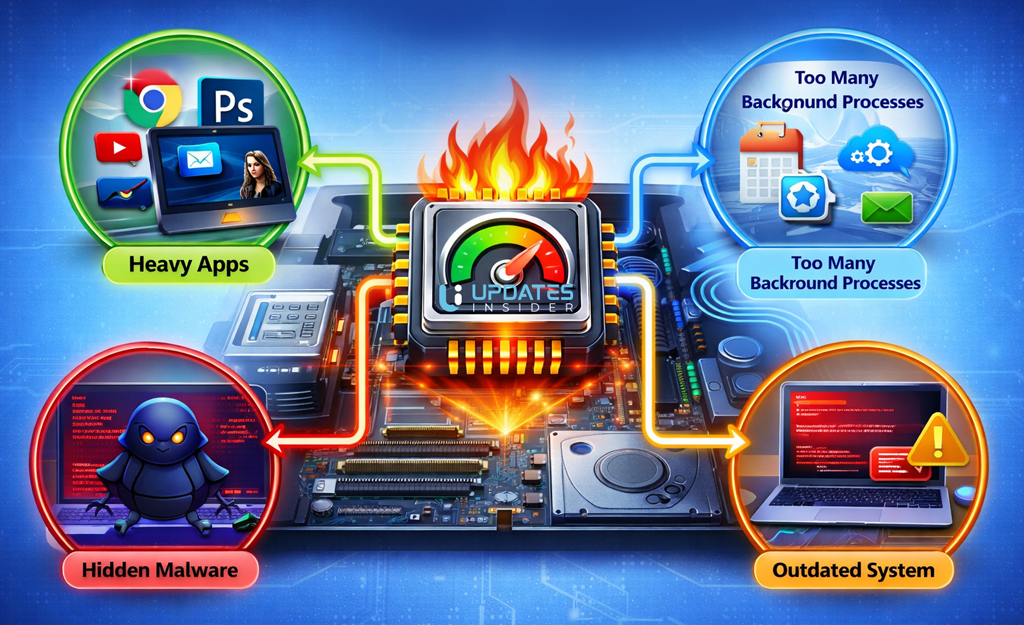
Here’s the important part.
High CPU usage for a few seconds is completely normal. Your system spikes when opening apps or loading files. That’s healthy behavior.
But constant high usage, especially when idle, is your signal. Something is using resources without a good reason.
What this really means is you’re not dealing with a mystery. You’re dealing with a system that needs a bit of direction. Once you identify what’s taking control, fixing it becomes much simpler.
Common Reasons Behind High CPU Usage
Now that you know what’s happening behind the scenes, let’s get practical.
High CPU usage doesn’t just appear out of nowhere. There’s always a reason. The tricky part is that it’s often not just one thing. It’s a mix of small issues stacking up until your system starts to feel heavy.
Let’s break down the usual suspects.
Too Many Background Apps
Some apps don’t close when you think they do. They keep running quietly, using CPU without asking.
Think of it like leaving multiple taps open. Each one seems small, but together they drain the system.
Startup Programs Overload
When your PC boots, several programs may launch automatically. Some are useful. Many are not.
If too many apps start at once, your CPU gets hit immediately, even before you open anything.
Malware or Suspicious Processes
This one often goes unnoticed.
Malicious software can run silently in the background, constantly consuming CPU. You won’t always see it directly, but your system will feel it.
Outdated Drivers or Windows Updates
Old drivers or pending updates can create inefficiencies.
Your system ends up working harder than necessary because components aren’t communicating smoothly.
System Services Working Overtim
Windows has built-in services like search indexing, updates, and background optimization.
Most of the time they help. But sometimes they get stuck or overactive, quietly eating CPU in the background.
Browser Overload
Modern browsers are powerful, but also demanding.
Too many tabs, heavy websites, or poorly optimized extensions can quickly push CPU usage up. One tab playing video or running scripts can affect everything else.
A Process That Just Won’t Let Go
Sometimes an app or system process glitches and keeps running at high usage even when it shouldn’t.
It’s like someone in that office refusing to stop talking. The CPU stays stuck dealing with it.
Overheating and Thermal Throttling
When your system heats up, it tries to protect itself.
The CPU slows down to reduce heat, which ironically makes tasks take longer and keeps usage high.
Old or Underpowered Hardware
At some point, software becomes more demanding than your hardware can handle comfortably.
Even normal tasks can push CPU usage high if the system is aging.
What this really means?
You don’t need to guess anymore.
When you want to fix high CPU usage in Windows, you’re not looking for a random trick. You’re trying to identify which of these factors is affecting your system.
And once you spot the cause, the solution becomes much more straightforward.
Let’s move to the most important step next. Finding exactly what’s causing it on your PC.
First Step Before Fixing Anything
Before you try any fix, pause for a second.
Most people jump straight into random solutions. They restart services, uninstall apps, tweak settings. Sometimes it works. Most times, it just adds confusion.
Here’s the thing. If you don’t know what’s causing the load, you’re just guessing.
So the first real step is simple. Find the culprit.
Open Task Manager
Press Ctrl + Shift + Esc.
This opens Task Manager, your system’s control room.
If it looks minimal, click More details at the bottom.
Now go to the Processes tab.
Check CPU Usage
At the top, you’ll see CPU usage as a percentage.
- 10 to 30 percent → normal
- 40 to 70 percent → moderate load
- 80 to 100 percent → something is pushing hard
Now click on the CPU column to sort processes from highest to lowest.
This shows exactly what’s consuming your CPU right now.
Spot What Looks Off
Look at the top few processes.
Ask yourself:
- Is this app supposed to be running?
- Does it make sense for it to use this much CPU?
For example:
- A browser using CPU with many tabs → normal
- A random background process using 60 percent → suspicious
- System processes constantly spiking → needs attention
Don’t Kill Everything Blindly
This is important.
Some processes are critical for Windows. Ending them can cause crashes or force a restart.
If you’re unsure about a process, right-click it and choose Search online. It helps you understand what it does before taking action.
Why This Step Matters?
Think of this like diagnosing a problem before fixing it.
If one app is causing the issue, you fix that app.
If it’s a system service, you adjust settings.
And, If it’s malware, you clean it properly.
What this really means is you’re moving from guessing to control.
And once you know what’s eating your CPU, the next fixes will actually work instead of just hoping they do.
Let’s move on to some quick wins you can try immediately.
Quick Fixes You Can Try Right Now
Alright, now that you’ve identified what’s eating your CPU, let’s go for some quick wins.
These are simple actions. No deep settings, no risk. Just practical steps that often bring instant relief.
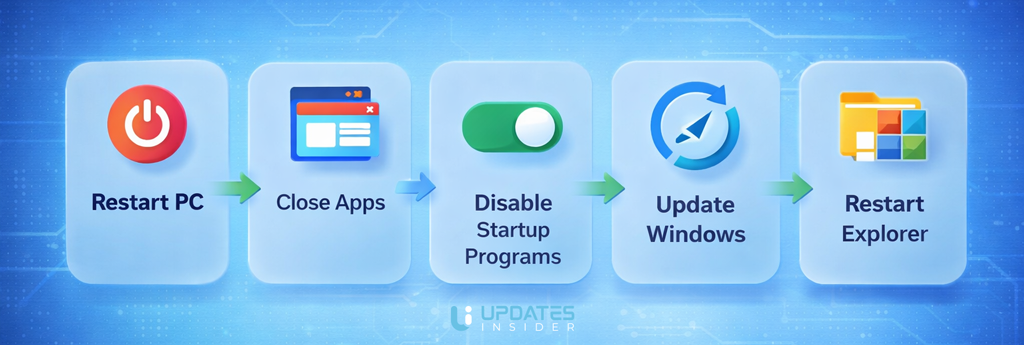
Restart Your PC
It sounds basic, but it works more often than people expect.
A restart clears temporary processes, resets stuck tasks, and gives your CPU a clean slate. If something was running endlessly in the background, this usually stops it.
Close Unnecessary Apps
Take a look at what’s open.
Browsers with too many tabs, background tools, unused software, all of these add up.
Close what you’re not actively using. You’ll often see CPU usage drop within seconds.
Disable Startup Programs
Some apps launch automatically every time your PC starts, even when you don’t need them.
Go to Task Manager → Startup tab and disable anything non-essential.
This doesn’t just help now. It prevents the problem from coming back every time you boot.
Update Windows
Pending updates can quietly run in the background and push CPU usage up.
Go to Settings → Windows Update and check for updates. Install anything pending and restart your system.
It helps your system run smoother and avoids unnecessary load.
Restart Windows Explorer
If your system feels laggy even when apps are closed, this can help.
Open Task Manager, find Windows Explorer, right-click, and hit Restart.
It refreshes the desktop environment without restarting your entire PC.
End High Usage Tasks (Carefully)
If you clearly see an app consuming too much CPU and you know it’s safe to close, you can end it.
Right-click the process in Task Manager and select End task.
Just don’t force-close system-critical processes unless you’re sure.
What this really means?
These quick fixes are like clearing clutter off a busy desk.
They won’t solve every deep issue, but they often reduce the load immediately. And in many cases, that’s all you need to fix high CPU usage in Windows without going any further.
If the problem keeps coming back though, that’s your signal. It’s time to go deeper and fix the root cause.
Deep Fixes That Actually Solve the Problem
Quick fixes are great for relief. But if the issue keeps coming back, it means something deeper is constantly pulling CPU resources.
This is where you move from temporary control to a proper solution.
Let’s break it down step by step.
1. Disable Unnecessary Startup Programs
Every time your system starts, a list of apps quietly launches in the background. Some are useful. Many just sit there consuming resources.
Over time, this creates a constant load on your CPU from the moment your PC turns on.
What to do?
- Open Task Manager
- Go to the Startup tab
- Disable apps you don’t need immediately after boot
How it helps?
You’re reducing the number of processes competing for CPU right from the start. Less competition means smoother performance without doing anything extra later.
2. Scan for Malware
Sometimes the issue isn’t visible.
Malware or unwanted programs can run silently, constantly using CPU without showing obvious signs. This is one of the most overlooked reasons behind performance issues.
What to do?
- Run a full system scan using Windows Security
- Optionally use a trusted anti malware tool for a second check
Why this matters?
These hidden processes don’t stop on their own. Until you remove them, your CPU will keep working overtime for something you didn’t even ask for.
3. Update Drivers
Drivers are how your hardware communicates with your system. When they’re outdated, things don’t run efficiently.
Your CPU ends up compensating for poor communication between components.
Focus areas
- Graphics driver
- Chipset driver
- Network driver
What to do?
- Use Device Manager or official manufacturer websites
- Install the latest stable versions
How it helps?
Better communication means less unnecessary processing. Your CPU does less work to achieve the same result.
4. Adjust Windows Power Settings
Your system’s power plan directly affects how your CPU behaves.
Balanced mode
- Optimizes performance and power usage
- Best for most users
High performance mode
- Keeps CPU running aggressively
- Can increase heat and constant usage
What to do?
- Go to Control Panel → Power Options
- Select Balanced if you’re not doing heavy tasks
What this changes?
Instead of running at full throttle all the time, your CPU adapts to actual workload. That reduces unnecessary strain.
5. Disable SysMain (Superfetch)
SysMain is designed to speed up your system by preloading frequently used apps into memory.
Sounds helpful, right. But on some systems, it does the opposite.
It keeps running in the background, constantly using CPU and disk.
What to do?
- Press Win + R
- Type services.msc
- Find SysMain
- Stop the service and set it to Disabled
When this helps?
- Older systems
- Systems with HDD instead of SSD
- Cases where CPU usage stays high even when idle
6. Fix Windows Search Indexing
Windows Search constantly indexes files so you can find them faster.
But if indexing gets stuck or overloaded, it can consume CPU continuously.
What to do?
- Open Indexing Options
- Modify indexed locations
- Remove unnecessary folders
You can also rebuild the index if it’s behaving abnormally.
How it helps?
Less indexing activity means fewer background tasks fighting for CPU time.
7. Limit Background Apps
Many apps keep running even when you’re not using them. Syncing, updating, checking for notifications.
Individually small. Together, heavy.
What to do?
- Go to Settings → Apps → Installed Apps
- Review apps you rarely use
- Disable background permissions or uninstall if not needed
What this changes?
You stop silent resource usage. Your CPU focuses only on what you’re actively doing.
What this really means?
If quick fixes are like clearing clutter, these steps are like reorganizing the entire system.
Once you apply these, your system doesn’t just feel faster for a moment. It stays efficient.
And this is where you truly fix high CPU usage in Windows instead of just reacting to it every time it happens.
Browser Specific Fixes
Here’s something most people underestimate.
Your browser alone can push your CPU to its limits.
You might think you’re just browsing. But behind the scenes, each tab is running scripts, loading media, tracking activity, sometimes even acting like a mini app.
Let’s clean that up.
Reduce the Number of Tabs
Every open tab uses CPU. Even the ones you’re not actively looking at.
Some websites keep refreshing content, running animations, or loading ads continuously.
What to do?
Close tabs you don’t need right now.
Bookmark them if you want to come back later.
What this changes?
You instantly reduce the number of active processes competing for CPU time.
Remove Heavy Extensions
Extensions can quietly drain resources.
Some run constantly in the background, checking pages, injecting scripts, or tracking activity.
What to do?
- Open your browser extensions page
- Disable or remove anything you don’t truly need
- Keep only essential tools
How it helps?
Fewer background scripts means less hidden CPU usage.
Identify the Problem Tab
Sometimes, it’s just one tab causing all the trouble.
A poorly optimized website or a stuck script can spike CPU usage instantly.
What to do?
- In Chrome, press Shift + Esc to open the browser task manager
- Look for tabs using unusually high CPU
- Close or reload that tab
Turn Off Auto Playing Content
Videos and animations that start automatically can consume CPU even when you’re not watching.
What to do?
- Pause videos manually
- Use browser settings or extensions to block autoplay
Try a Lighter Browser Setup
Not all browsers behave the same under load.
If your system struggles, consider simplifying your setup instead of jumping between browsers.
What this really means?
You don’t always need a new browser. You need a cleaner one.
Clear Cache and Temporary Data
Over time, browsers collect a lot of temporary data.
This can slow things down and increase processing load.
What to do?
- Go to browser settings
- Clear cache and browsing data
What this really means?
Your browser isn’t just a window to the internet anymore. It’s one of the heaviest apps on your system.
If you manage it well, you remove a huge chunk of unnecessary CPU load.
And for many people, this alone is enough to fix high CPU usage in Windows without touching anything else.
When It’s Not Software… It’s Hardware
Up to this point, everything we’ve talked about lives inside your system. Apps, settings, background processes.
But sometimes, the issue isn’t what’s running. It’s what your machine can handle.
Here’s how to recognize that shift.
Overheating Changes Everything
Your CPU is designed to protect itself.
When it gets too hot, it slows down automatically. This is called thermal throttling.
Now here’s the catch.
When the CPU slows down, tasks take longer to finish. Which keeps CPU usage high for longer periods. So even simple actions start feeling heavy.
What to look for?
- Loud fan noise almost constantly
- Laptop getting unusually hot
- Performance drops after a few minutes of use
What helps?
- Clean dust from vents and fans
- Use your laptop on a hard surface, not a bed or cushion
- Consider a cooling pad if needed
Dust Buildup Over Time
This is one of the most ignored causes.
Dust blocks airflow. Less airflow means more heat. More heat means reduced efficiency.
It’s a slow problem, but it builds up quietly.
What to do?
- Clean air vents regularly
- If comfortable, get internal cleaning done once in a while
Aging Hardware Struggles with Modern Tasks
Software keeps evolving. Your hardware doesn’t.
What felt fast two or three years ago might now struggle with the same tasks. Browsers, apps, even system updates have become more demanding.
So your CPU ends up working harder just to keep up.
Signs of this
- High CPU usage even with basic apps
- Sluggish performance despite clean system
- No major improvement after trying software fixes
Not Enough Processing Power for Your Workload
Sometimes it’s not about age. It’s about usage.
If you’re running heavy apps like video editing tools, multiple browser tabs, or design software on an entry level CPU, it will naturally stay under pressure.
That’s not a bug. That’s a mismatch.
When Upgrading Makes Sense
This is where many people hesitate.
They keep trying to fix things that aren’t really fixable through settings.
If you’ve tried everything and your system still struggles, it might be time to upgrade.
Options
- Upgrade to an SSD if you’re still using HDD
- Add more RAM to support multitasking
- Move to a more powerful CPU system if your work demands it
What this really means?
Not every performance issue has a software fix.
Sometimes your system is doing its best with the limits it has.
Once you recognize that, you stop chasing endless tweaks and start making smarter decisions. Either optimizing your usage or upgrading where it actually matters.
And that clarity alone saves a lot of time and frustration.
Common Myths (Quick Reality Check)
When your system slows down, advice comes from everywhere. Friends, forums, random videos.
Some of it helps. A lot of it doesn’t.
Let’s clear a few common misconceptions so you don’t waste time chasing the wrong fixes.
“Adding more RAM will fix everything”
This is probably the most common one.
RAM and CPU do different jobs. RAM handles how much you can run at once. The CPU handles how fast things get processed.
If your CPU is constantly maxed out, adding RAM alone won’t solve it.
What this really means?
More RAM helps multitasking. It doesn’t directly fix high CPU load.
“Task Manager shows everything correctly”
Task Manager is useful, but not perfect.
Some background processes group together. Some services don’t clearly explain what they’re doing. And certain malicious processes try to hide or look normal.
What this really means?
Use Task Manager as a guide, not the final truth. If something feels off, dig a little deeper.
“Closing apps permanently fixes the problem”
Closing an app might drop CPU usage for the moment. But if that app is set to restart, or if the real issue is elsewhere, the problem comes back.
What this really means?
Temporary relief is not the same as a solution.
“High CPU usage always means a virus”
Not necessarily.
Yes, malware can cause it. But most of the time, it’s just normal apps, background services, or system settings working inefficiently.
What this really means?
Don’t jump straight to worst case scenarios. Diagnose first.
“My PC is slow, so the CPU must be the problem”
Slowness can come from many places.
Disk speed, background processes, overheating, even browser behavior can make your system feel slow while the CPU isn’t the real issue.
What this really means?
High CPU usage is one piece of the puzzle, not the whole picture.
“You need to upgrade immediately”
Upgrading is sometimes the answer, but not always the first one.
Many systems run poorly simply because they’re unoptimized.
What this really means?
Fix the basics before spending money.
What this really means?
Once you remove these myths, things become clearer.
You stop guessing. You stop applying random fixes. And you start focusing on what actually improves performance.
That shift alone makes it much easier to fix high CPU usage in Windows in a way that actually lasts.
A Simple Routine to Keep CPU Usage Low
Here’s the part most people skip.
They fix the issue once, feel relieved… and then a few weeks later, the same problem comes back.
Not because the fix failed. But because there’s no routine to keep things in check.
You don’t need anything complicated. Just a few simple habits that keep your system running clean and efficient.
Weekly Quick Check
Take two minutes, that’s it.
- Open Task Manager and scan CPU usage
- Look for anything unusual or unfamiliar
- Close apps you don’t really use
What this does?
It helps you catch small issues before they turn into bigger ones.
Clean Up Startup Programs (Once a Month)
New apps love adding themselves to startup without asking.
Over time, your boot process gets heavier again.
- Go to Task Manager → Startup
- Disable anything non-essential
What this does?
Keeps your system light from the moment it turns on.
Keep Your System Updated
Updates aren’t just about features. They fix bugs and improve efficiency.
- Check for Windows updates regularly
- Update drivers when needed
What this does?
Prevents unnecessary CPU load caused by outdated components.
Manage Your Browser Habits
This one makes a bigger difference than people expect.
- Don’t keep dozens of tabs open
- Remove extensions you rarely use
- Restart your browser once in a while
What this does?
Reduces one of the biggest hidden sources of CPU usage.
Run a Security Scan Occasionally
Even if everything looks fine, it’s worth checking.
- Run a quick or full scan using your security tool
What this does?
Ensures no hidden process is silently using your CPU.
Restart Your PC Regularly
Not once in a month. Make it a habit.
- Restart every few days if you use your system heavily
What this does?
Clears stuck processes and refreshes system resources.
Keep Your System Physically Clean
This part is easy to ignore, but important.
- Make sure vents are not blocked
- Clean dust occasionally
What this does?
Prevents overheating, which directly affects CPU performance.
What this really means?
You don’t need constant fixes if you build a simple routine.
Think of it like maintaining a workspace. A little cleanup now and then keeps everything running smoothly without stress.
And when you follow this consistently, you won’t just fix high CPU usage in Windows once. You’ll prevent it from becoming a problem again.
Final Thoughts
At this point, you’ve probably realized something important.
High CPU usage isn’t some random issue that appears out of nowhere. It’s your system reacting to workload, settings, or limitations. Once you understand that, it stops feeling confusing and starts feeling manageable.
Most of the time, the fix isn’t dramatic. It’s a series of small, clear actions. Identifying what’s running. Removing what’s unnecessary. Adjusting how your system behaves.
That’s where the real difference comes from.
You don’t need to try every fix you see online. You just need the right ones based on what your system is actually doing. And once you’ve gone through this process, you’ll notice something. Your system doesn’t just improve, you understand it better.
That understanding is what keeps the problem from coming back.
And if you ever run into it again, you won’t panic or guess. You’ll know exactly where to look and how to fix high CPU usage in Windows with confidence.