How to Fix Gmail Storage Full Problem?

 9th March, 2026
 14 min read
 You sit down to send something simple. Maybe it is a resume, a client reply, or a file someone is waiting on. You hit send, and instead of that quiet confirmation, you see an error. Storage full.
For a second, it feels like something is broken. You didn’t change anything. You didn’t install anything. Yet suddenly, your email stops working the way it always has.
Here’s the thing. This situation is far more common than it looks. The Gmail storage full issue doesn’t show up overnight. It builds quietly in the background. Every attachment, every forwarded file, every unused document adds up over time until one day, the limit is reached.
What makes it frustrating is how unexpected it feels. You might not even use your inbox that heavily. Still, the space runs out.
The good news is this is not a technical failure. Your account is fine. Your emails are safe. This is simply a storage limit doing its job.
What this really means is you do not need a complicated fix. You just need the right approach. In the next sections, we will break down exactly what is taking up your space, how to clear it quickly, and how to make sure you do not run into this again.
Why This Happens in the First Place?
It helps to understand what is actually filling up your space. Most people assume it is just emails. That is only part of the picture.
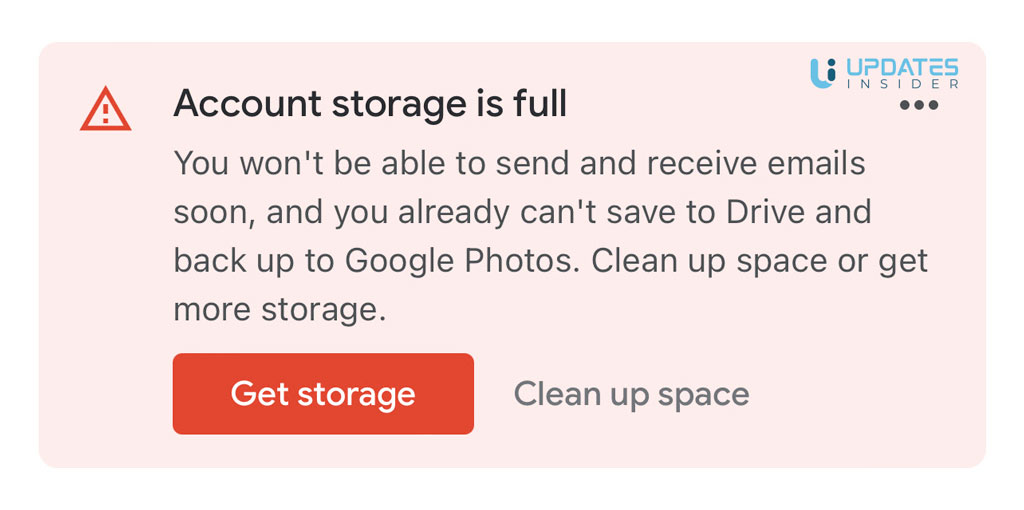
Your Gmail storage full issue usually comes from three places working together. Gmail itself, Google Drive, and Google Photos. They all share the same storage limit.
Think of it like a single locker. You are using it to store letters, files, and photos at the same time. Even if one section looks clean, the locker can still be full because of the others.
Let’s break it down in a simple way.
Emails take space, especially the ones with attachments. A single PDF or video sent over email can quietly eat up a big chunk of storage. Over time, these pile up.
Google Drive is another major factor. Old documents, downloads, backups, and shared files often sit there untouched. Many people forget this space even exists.
Then there is Google Photos. High quality images and videos, especially from phone backups, can consume storage faster than anything else.
What catches people off guard is how all of this adds up in the background. You might delete a few emails and expect things to go back to normal, but the real space could be taken up somewhere else.
That is why random cleanup does not always work. You need to know exactly where your storage is going before you start deleting things. In the next section, we will look at how to check that clearly so you are not guessing.
Check Your Storage Before You Start Deleting
Before you begin clearing things out, take a moment to see where your space is actually going. This step saves a lot of time and prevents you from deleting the wrong things.
When the Gmail storage full message appears, it does not tell you what is causing it. It just tells you the limit is reached. The real story is in the breakdown.
Open your Google storage page and you will see a simple visual bar. It shows how much space is used and how it is divided between Gmail, Google Drive, and Google Photos.
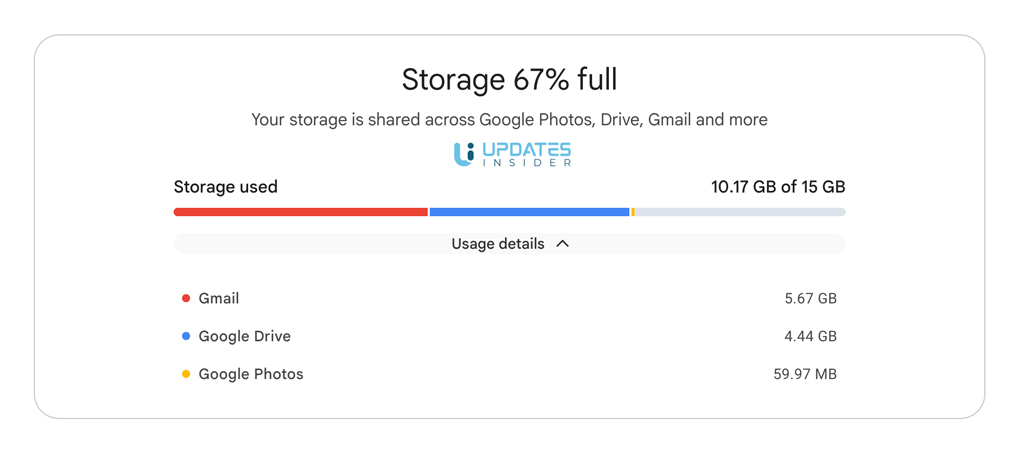
This is where things usually click.
Sometimes Gmail is the main culprit. Other times, it is Drive filled with old files you forgot about. In many cases, Photos quietly takes the biggest share because of videos and backups.
Look at the percentages closely. If one section is clearly larger than the others, that is your starting point. You do not need to clean everything. You just need to target the biggest space user first.
Also pay attention to how close you are to the limit. If your storage is completely full, even small actions like receiving emails will stop. If you still have a little space left, you have room to clean things more carefully.
This step is simple, but it changes how you approach the problem. Instead of guessing, you now have clarity.
Next, we will move into quick fixes that actually free up space immediately without overthinking the process.
Quick Fixes That Free Up Space Immediately
Now that you know where your storage is going, it is time to clear space fast. You do not need complicated tools for this. A few focused actions can make a big difference within minutes.
Start with large emails. These are usually the biggest hidden problem. Instead of scrolling endlessly, use search filters to find them. Type size larger than 10MB in the search bar and you will instantly see emails that take up serious space. Go through them and remove what you no longer need.
Next, clean your Spam and Trash folders. This part is often ignored. Emails sitting there still count toward your limit. Open both folders and empty them completely. It is one of the fastest ways to deal with the Gmail storage full situation.
Attachments are another easy win. Many emails contain files you already downloaded long ago. Keeping both the email and the file means you are using space twice. If the file is saved elsewhere, you can safely remove the email. Download Gmail attachment before cleanup to avoid losing important data.
You can also delete old conversations that no longer matter. Newsletters, promotional emails, and automated notifications build up over time. Removing them in bulk clears space without affecting anything important.
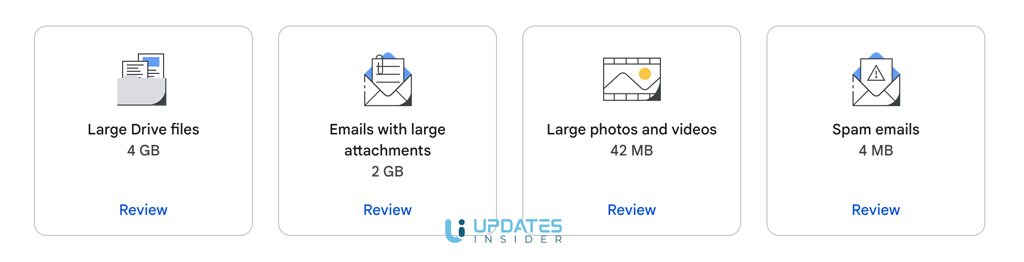
The key here is not to overthink each email. Focus on size and relevance. Big files and unnecessary messages go first.
These quick fixes usually free up enough space to get your email working again by increasing Gmail storage space. But if you want a deeper cleanup that lasts longer, the next section will show you a smarter way to do it.
Smart Cleanup That Actually Lasts
Quick fixes solve the immediate problem. But if you stop there, the same issue will come back. What you need now is a cleaner, more intentional approach.
Start by using Gmail’s search in a smarter way. Instead of randomly deleting emails, filter them with purpose. Try searches like has attachment or older than 1 year. This helps you find emails that are both heavy and no longer useful.
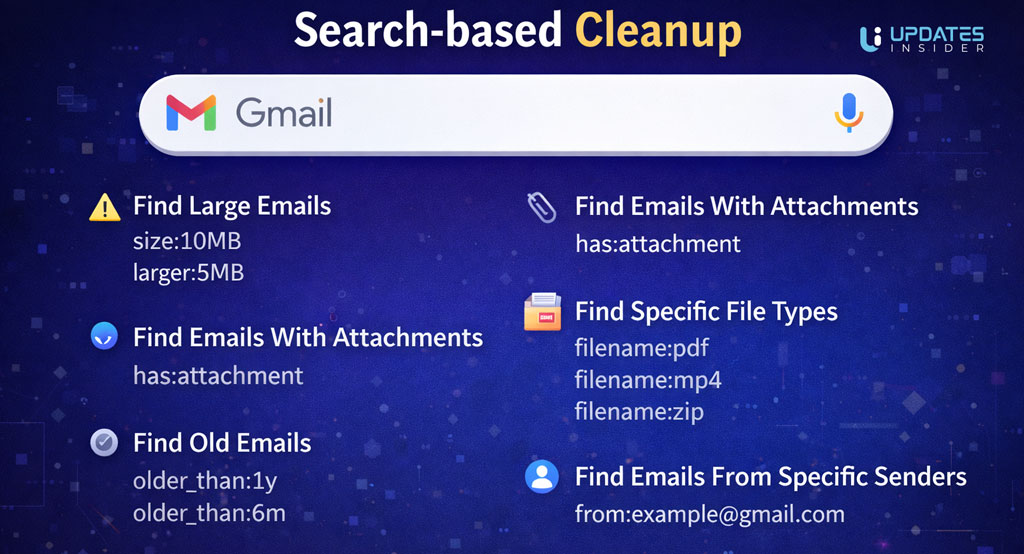
Now, do not rush into deleting everything. Take a second to scan. Some old emails might still matter. This is where labels help. Mark anything important first, then clear the rest without hesitation.
Bulk deletion is your best friend here. Instead of removing emails one by one, select entire groups and delete them together. It saves time and keeps the process simple. Bulk deleting Gmail email with proper filtration.
Another useful habit is spotting patterns. You will notice certain senders filling your inbox regularly. Promotions, updates, alerts. If they are not useful, remove them in batches. You can even unsubscribe while you are at it, so the clutter does not come back.
The Gmail storage full problem often returns because cleanup is done randomly. What this method does is give structure to the process. You are not just deleting. You are organizing what stays and removing what no longer serves you.
Once this is done, your inbox will feel lighter, not just in space but in clarity.
Next, we will look beyond Gmail itself. Because sometimes the real storage drain is hiding in Drive and Photos.
Look Beyond Gmail. Check Drive and Photos
Here is where most people get stuck. They clean their inbox, expect space to come back, and nothing really changes.
That usually means the real issue is somewhere else.
Your Gmail storage full problem is not always about emails. Google Drive and Google Photos share the same storage, and they often take up more space than you expect.
Start with Google Drive. Open it and sort files by size. You will quickly notice large videos, PDFs, old project files, or backups sitting there untouched. These files are easy to forget because they are not part of your daily workflow. Removing just a few of them can free a significant amount of space.
Also check for duplicate files or downloads you no longer need. Many times, the same file exists in multiple versions. Keeping all of them only adds unnecessary weight.
Now move to Google Photos. This is often the biggest hidden storage user. Videos, especially, consume a lot of space. Even short clips can add up quickly over time.
Go through large videos first and remove the ones you do not need. Then look for blurred shots, duplicates, or screenshots that have no real value. Deleting these does not affect anything important but frees up a lot of room.
There is also an option to compress photos to save space. If you do not need original quality for everything, this can make a noticeable difference.
What this really shows is simple. Storage is shared, but the problem often hides in places you do not check often.
Once you clear these areas, the Gmail storage full issue usually starts to disappear for good.
Next, we will go a bit deeper and fix the smaller things that still quietly take up space.
Fix the Small Things That Still Take Up Space
By now, you have cleared the obvious clutter. But sometimes, even after all that, storage still feels tighter than expected. That is because of a few smaller areas most people overlook.
Start with Trash. Deleting emails or files does not remove them instantly. They sit in Trash for a while and continue to use space. Open Trash in Gmail and Google Drive, then empty it permanently. This step alone can free up more than you think.
Next, check app backups. If you use Android, there is a good chance your phone has been backing up data to Google Drive. Things like WhatsApp backups, app data, and old device backups can quietly consume space. Look through them and remove anything outdated or unnecessary.
Shared files are another hidden factor. Even if someone else owns the file, it can still take up space in your Drive if you have added it to your storage. Go through shared items and remove the ones you no longer need access to.
Also take a look at old uploads or failed uploads. Sometimes files get partially uploaded or duplicated without you realizing it. Cleaning these up helps reclaim small chunks of space that add up.
The Gmail storage full issue often lingers because of these leftover pieces. They are not obvious, but together they hold a noticeable amount of storage.
Once these are cleared, your account should feel much lighter and more stable.
Next, we will shift from fixing to preventing this from happening again, so you do not have to repeat this process every few weeks.
How to Stop This From Happening Again?
Fixing the problem feels good. But what matters more is not ending up here again a few weeks later.
The Gmail storage full issue usually returns because nothing really changes in how storage is used. Emails keep coming in, files keep getting saved, and slowly the space fills up again.
So instead of another big cleanup later, a few small habits now can keep things under control.
Start with a simple monthly check. You do not need a full cleanup every time. Just spend five minutes scanning large emails or unused files. This keeps things from piling up silently.
Next, be a little more intentional with attachments. If you download a file and save it somewhere else, there is no need to keep the email forever. Removing it early prevents unnecessary buildup.
Filters and labels can also help. Automatically sort newsletters or promotional emails into separate folders. That way, when you clean up, you can remove them in bulk without touching important conversations.
Unsubscribing is another underrated step. If your inbox is constantly filled with emails you never open, stopping them at the source makes everything easier.
For photos and videos, avoid keeping everything blindly. Not every screenshot or duplicate needs to stay forever. A quick cleanup after backups can save a lot of space in the long run.
What this really comes down to is awareness. You do not need strict rules. Just small, consistent actions.
Backup Gmail data regularly to make sure a great backup is always there for restoration or recovery. Also, cloning a Google Worspace account is important for compliance and data security.
When you build these habits, the Gmail storage full problem stops being something you fix and becomes something you avoid altogether.
Next, let’s talk about the point where cleanup is not enough and upgrading storage actually makes sense.
When It Actually Makes Sense to Upgrade Storage?
At some point, you might clear everything you can and still feel tight on space. That is when the question comes up. Should you keep cleaning or just upgrade?
Here is the honest answer. Not everyone needs more storage. But for some people, it is the practical choice.
If your work depends on emails with large attachments, frequent file sharing, or storing documents long term, space will always fill up again. In that case, constant cleanup becomes a cycle. You fix it today, and a few weeks later, you are back in the same place.
The same applies if you rely heavily on Google Photos or Drive. High quality videos, backups, and project files are not something you can keep deleting again and again.
This is where upgrading starts to make sense. It is not about avoiding cleanup completely. It is about giving yourself breathing room so you are not forced to delete useful things.
On the other hand, if most of your storage is filled with old, unnecessary files, then upgrading is just delaying the problem. Cleaning up properly is the better move.
So the decision is simple. If your storage is full because of real usage, upgrading is reasonable. If it is full because of clutter, fixing that first is the smarter step.
The Gmail storage full issue is not always a problem to solve. Sometimes, it is just a signal that your needs have grown.
Now that everything is clear, let’s wrap this up in a simple way so you can move forward without second guessing.
Bringing It All Together
At first, it feels like your email just stopped working for no reason. One moment everything is fine, the next you are blocked from sending or receiving anything because of the Gmail storage full message.
But now you can see what is really happening.
This is not a sudden error. It is a slow buildup. Emails, attachments, Drive files, and photos quietly stacking up until the limit is reached.
The fix is not complicated. You start by checking where your storage is going. Then you remove the biggest space users first. Large emails, unused files, old videos. After that, you clear the hidden areas like Trash and backups.
Once that is done, the problem usually disappears.
What matters more is what you do next. A few small habits can keep your storage under control without needing another big cleanup. And if your usage naturally requires more space, upgrading becomes a practical choice, not a forced one.
So if you are dealing with the Gmail storage full issue right now, you are not stuck. You just needed clarity and a plan.
Follow the steps, take it one section at a time, and your account will be back to normal sooner than you expect.